The preferences page allows you to enable/disable standard alerts and custom alerts, configure standard alerts, determine the way the team views assets, and set up service event conditions.
Alerts
The alerts section allows you to customize which alerts are shown to the team and their order of preference. To change the order of preference, left-click and hold on the alert and drag up or down the list to make it have higher preference or lower preference. To remove an alert, click the Enabled drop-down and select Disabled.
Scheduled Maintenance
For scheduled maintenance, you can show Only Overdue, Only Due, both Overdue and Due, or not show scheduled maintenance.
Recall
Recall does not have any configurable settings.
Warranties Expiring
You can select when to be alerted for expiring warranties by selecting 30 Days, 60 Days, or 90 Days.
Recent Faults
For faults, you can determine the severities to be shown (Severe, Attention, Moderate, Unknown) as well as the number of days (1, 2, 3, 4, or 5) to show faults.
Custom Alerts
For custom alerts, you can determine the severities to be shown ( Severity 4, Severity 3, Severity 2, Severity 1, set the option to allow manual resolving for this alert type, and view the Integration Details.
Assets
The Assets section is used to determine how the team views the assets.
Main Identifiers
Select the identifiers that the team will see as the main asset attributes in Sentinel. You can select up to two items to be used as primary identifiers, but Primary Identifier 1 is required. The Main Identifiers will be shown on the first line for each asset on the Assets page as well as other pages where the Asset information is shown and the information that is sent in the notification emails.
Secondary Identifiers
These are the identifiers that your team will see as secondary asset attributes in Sentinel. Select which to show, and in what order to show them. These will be reflected in the assets listing, as well as other asset mentions. You may select up to three.
Other Identifiers
These are the identifiers that your team will see as lower-level asset attributes. Select which to show and in what order to show them. These will be reflected in the asset detail panels. You may select up to three.
Assets by Status Configuration
This section allows you to determine which statuses will populate the Assets by Status panel on the Home Page. You can choose Repair Statuses or Fleet Statuses to determine what is considered Scheduled, At Service, and Ready. You can also disable the Scheduled, At Service, and/or Ready status if you do not want that status to show on the Assets by Status panel.
To add a repair or fleet status to Scheduled, At Service, or Ready, click the drop-down arrow and select a status. Once a status is selected for Scheduled, At Service, or Ready it cannot be selected for a different status. To remove a status, click the X beside the repair status.
Service Events
This section sets up how service events will work for your team.
Actions Enabled
If you are a Dealer Type team, you will have the Actions Enabled option. You can select to Send Requests to In-Network Service locations and/or to locations Outside your network or Create Cases for In-Network Service Locations. You must select at least one of the available actions that will become available for your team when initiating a service event. You can also specify the Broker Service Location that has the ability to create sub-cases to other service providers. This can be configured in Portal or by a Decisiv representative.
Automatic Service Event Updates
Repair Status
Use the repair status to automatically update service events as Completed when a case reaches a specific Repair Status. You can select Complete (Gone) and/or Complete (Here) or neither.
Fleet Status
Use the Fleet Status to automatically update service events as Completed when the fleet status is marked Completed or set the Service Event to be archived when the Fleet Status is set to Archived or Declined.
Case Status Visibility
If you are a Fleet Type team, you will have the Case Status Visibility and the Fleet Status Visibility option. This controls what status you can see for the Case. The options are Only Case Status Repair Status, Only Fleet Status Repair Status, or Both.
Service Provider Preferences:
Fleet Preferences: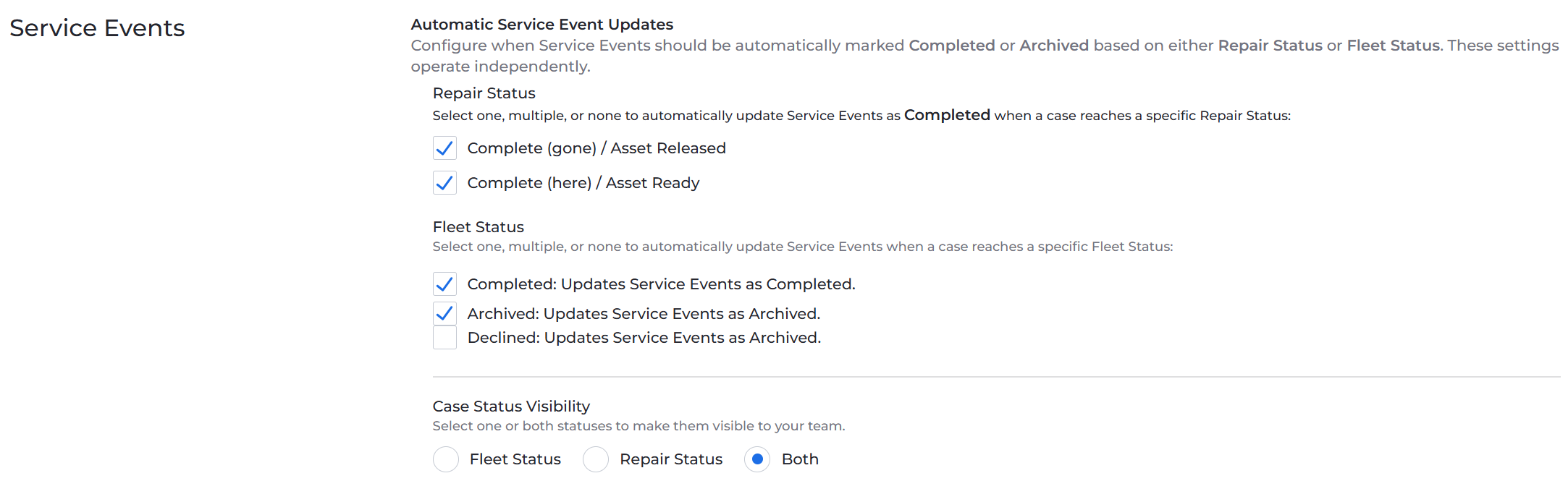
Service Networks:
You can select one or more service providers as your default when creating a Service Event. This limits the results returned when you search by location. The default is All.
Fault Severity
This section allows you to customize the label displayed throughout the application for the four levels of fault severity (Severe, Attention, Moderate, and Unknown). The new label can be up to 20 characters and cannot contain any special characters. The Preview column will display how the new label will look when displayed in the application.
Comments
0 comments
Please sign in to leave a comment.